
Build Your Own Sandbox Cloud with Flame
An agent workspace starts small: a shell, a project directory, and a few packages. As more agents run, those workspaces need shared capacity, a lifecycle, and a way to see which machine is doing the work. With Flame, you can turn Linux machines you operate into a sandbox cloud for your agents.
Flame supplies sessions, scheduling, and reusable executors. flame-cluster adds deployment, worker enrollment, and a web console. And hermes-flamepy 0.3.2 lets Hermes use that cloud through its standard terminal and file tools. Your agent can run on a laptop while its generated code runs on remote Linux workers.
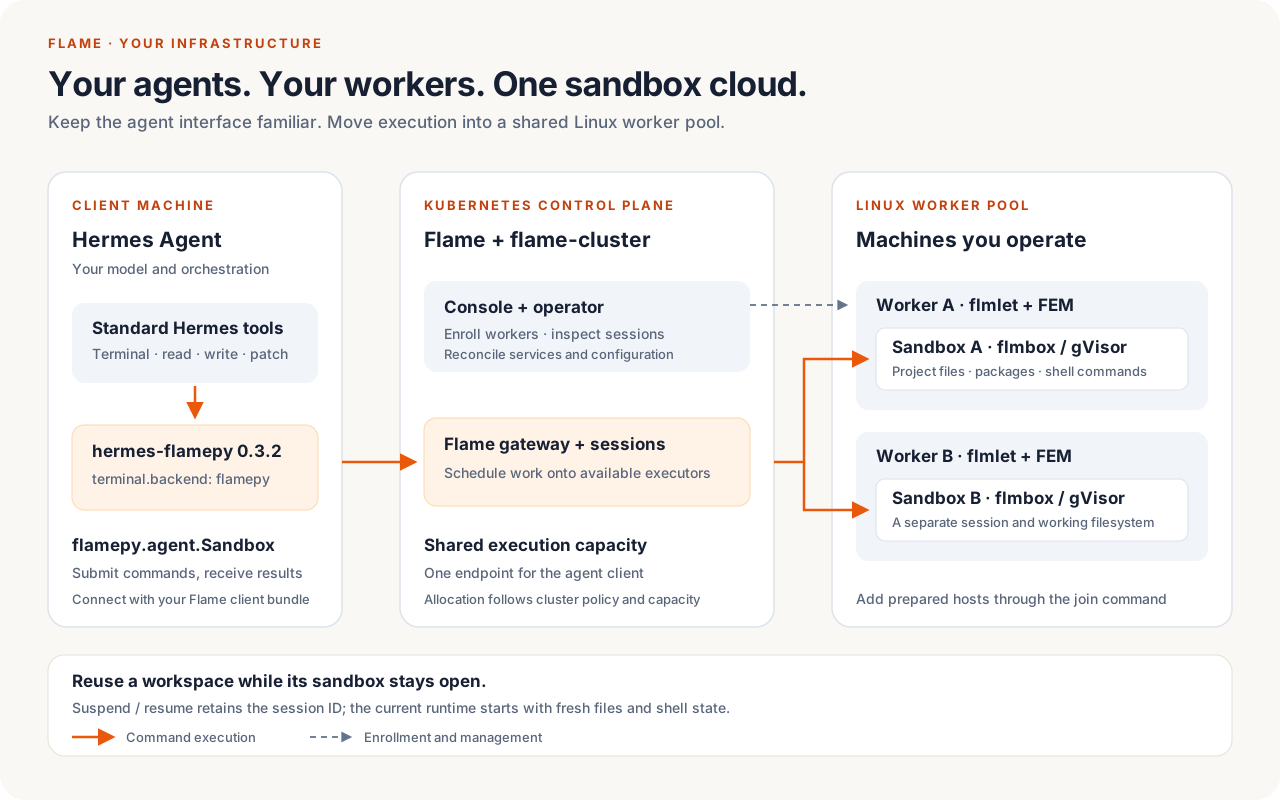
Figure 1. An execution cloud on your own infrastructure. Open any image at full size by clicking it. Solid arrows show command execution; the dashed arrow shows worker enrollment and management. Each open sandbox has its own working filesystem.
Why build it with Flame?
High throughput and low latency
Agent execution combines many short commands with longer-running programs. High task throughput helps the cluster serve concurrent sessions, while low command latency keeps an individual agent’s edit-run-inspect loop responsive. Flame’s session model and executor reuse reduce repeated runtime setup along that path.
The Flame performance benchmark reports 30,000 lightweight Rust ping tasks in 3.29 seconds, or 9,124 tasks per second, on a single-node deployment. Our earlier sandbox SDK measurements provide complementary latency results:
| Measurement | Reported result |
|---|---|
| New executor and service, allocation through first Python result | 127 ms median |
| Retained sandbox, trivial shell command | 8.56 ms median |
| Retained sandbox, trivial Python command | 24.72 ms median |
The sandbox measurements used flamepy 0.7.0, prewarmed images, and an in-cluster client; initial SDK connection setup, model inference, and laptop-to-cluster networking were excluded. The warm-call figures summarize six rounds of measurements. These are separate task-throughput and sandbox-latency experiments, rather than an end-to-end benchmark of hermes-flamepy 0.3.2.
Keep system resource overhead low
The Flame Executor Manager (FEM) is a small native Rust daemon on each worker. It handles executor lifecycle and communication with the session manager, while application code runs in the configured execution environment. The manager itself needs no Python interpreter or JVM. This lightweight worker component helps leave CPU and memory available for the sandboxes and programs doing the work. See the FEM implementation.
We measured the running services on both workers on November 22, 2026. Each worker had eight logical CPUs. Across 16 observations over approximately 30 seconds per host, FEM’s resident memory stayed at the following values:
| Worker | FEM resident memory (RSS) | FEM CPU, average over the interval |
|---|---|---|
flm-worker-01 |
17.28 MiB | 0.10% of one CPU core |
flm-worker-02 |
17.31 MiB | 0.07% of one CPU core |
The accompanying flmlet processes used 10.46–10.64 MiB RSS, and the object-cache processes used 13.86–13.91 MiB RSS. These measurements came directly from Linux process counters, with systemd identifying each service’s main process. CPU percentages use CPU-time deltas over the observation interval; memory figures describe resident process pages.
The cluster had no active executors, pending tasks, or running tasks during the workload-status snapshot taken within the sampling window. These figures show the current idle worker-service footprint; they do not establish resource requirements under load. Worker sizing should account separately for sandbox runtimes, image caches, application processes, and control-plane services. The Dashboard’s total memory usage covers the wider host workload. Download the raw observations, CPU summaries, and measurement scope.
Run workloads in different languages
Flame’s execution model is independent of the application’s programming language. Python and Rust have dedicated SDKs, while the gRPC service interface supports integration with other languages, including Go. Teams can use Python for agent workflows and compiled services for other parts of an application while retaining the same application, session, and task model.
Sandbox commands can also invoke tools written in different languages when the chosen image contains their interpreters or compiled binaries. For example, a Hermes workspace can run Python analysis, shell scripts, and a compiled command-line tool in the same open sandbox. Select an image with the required tools; the default python:3.12-slim image does not include every language toolchain. See the Flame language overview and Hermes image requirements.
Share worker capacity across agent sessions
Clients submit work to Flame through a common endpoint. Flame places that work on available executors according to session demand, resource requests, cluster policy, and capacity. The client does not need a list of worker addresses or its own machine-selection logic.
Independent sandbox sessions can run across the worker pool. A stateful sandbox keeps its commands together with its workspace on its assigned executor; adding workers increases available capacity for additional sessions. It does not make a single shell command distributed. The Flame execution model explains the session-to-executor relationship.
Reuse the environment between tool calls
An agent often installs dependencies, writes a script, runs it, and then revises it. An open Flame sandbox retains those files and packages between commands. The agent can continue working without rebuilding the environment at every step.
Flame also supports executor reuse, and flmbox caches unpacked images on workers. Together, these mechanisms avoid repeating parts of service startup and image preparation when reuse is possible. Each sandbox gets its own writable layer over the cached image. Actual startup time depends on image availability and worker readiness; see the sandbox runtime documentation.
Operate the pool through flame-cluster
flame-cluster brings installation, worker enrollment, configuration, and inspection into one workflow. Its Kubernetes operator reconciles the control plane; flmlet installs and maintains executor-manager services on joined Linux hosts. The console connects worker readiness with applications, sessions, executors, and task progress.
That gives an operator a place to investigate a command waiting for capacity, an unhealthy worker, or a sandbox session that should be released. Join a node and Download flame.yaml connect the administrative view directly to worker and client setup.
Choose where execution runs
You choose the worker machines, runtime images, and deployment network. The agent’s code and working files execute on those workers, and flmbox uses gVisor’s runsc runtime for the sandbox boundary. Hermes still uses its configured model provider; inference and any data sent to that provider remain part of the agent configuration.
Worker access and network policy are deployment responsibilities. In particular, the built-in flmbox application currently selects host networking; gVisor isolation does not by itself restrict network egress. Review the runtime networking behavior when choosing who can run code on your cluster.
Build the sandbox cloud
Install, join, and connect
Start with the infrastructure described in the deployment guide: Kubernetes and storage, Helm, cert-manager, Envoy Gateway and Gateway API, and the configured GatewayClass and certificate issuer with its public CA trust. Worker hosts need Linux with systemd and the workload runtimes and networking appropriate to their tasks.
Workers enable CRI and Host execution by default, and Host tasks run as root. Choose the enabled runtimes for your workloads and restrict worker-network access as described in the deployment security boundaries. Hermes sandbox execution additionally requires the flmbox and runsc setup described below.
Install the control plane using the active kubeconfig:
curl -fsSL https://xflops.io/cluster/setup.sh | sh
The installer uses Helm and derives default addresses from the kubeconfig server. A values file is optional. If the Kubernetes API address is unsuitable for worker traffic, use the endpoint overrides documented in the deployment guide.
Open http://<kubeconfig-server-ip>/, select the Flame namespace, and open Settings. Copy Join a node and run that command on a prepared worker. Its form is:
curl -fsSL https://xflops.io/cluster/setup.sh | sudo sh -s -- --join '<token>'
The join process creates the worker resource and generates its conf/flame-cluster.yaml; a worker manifest is not required beforehand. Join tokens rotate every 15 minutes, while enrolled workers retain their own credentials.
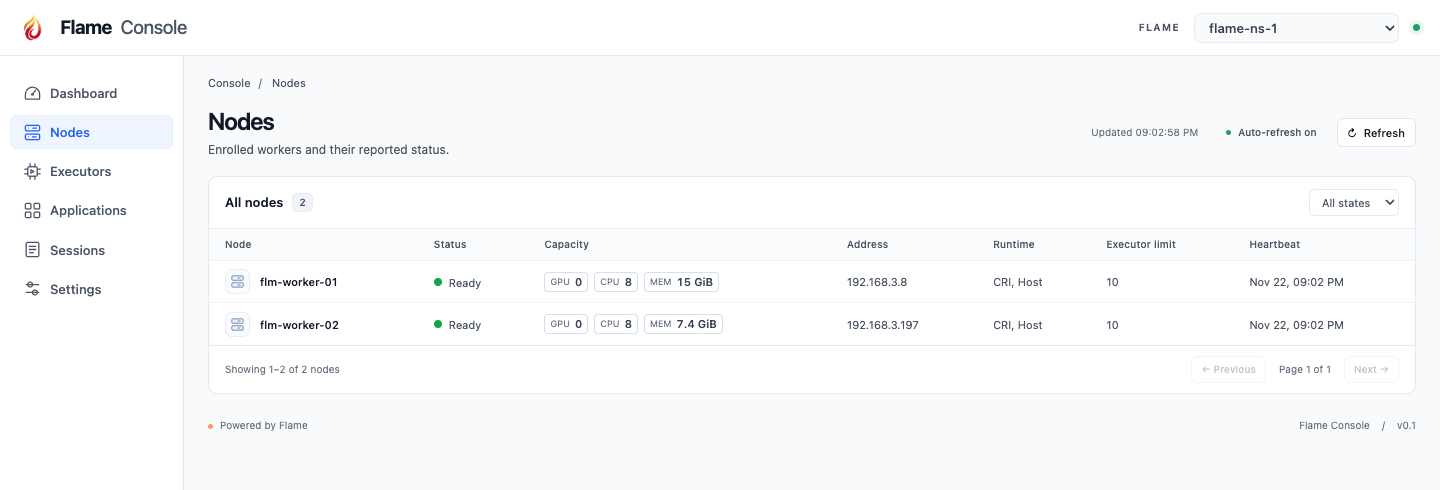
Figure 2. Worker inventory from the live console. Both joined hosts report Ready, with eight CPUs each. This view makes enrollment and available capacity visible before an agent submits work.
Settings also provides Download flame.yaml. Place that bundle at ~/.flame/flame.yaml on the machine running Hermes. It contains a client certificate and private key, so keep it private. Exported copies need refreshing when the cluster renews the credentials.
Inspect the execution environment
The console opens the selected Flame’s Dashboard, showing worker readiness, reported capacity, and current resource usage. Nodes shows enrolled workers, including workers that have not yet registered with the session manager. Applications, Sessions, Executors, and task details expose the workload side of the cluster.
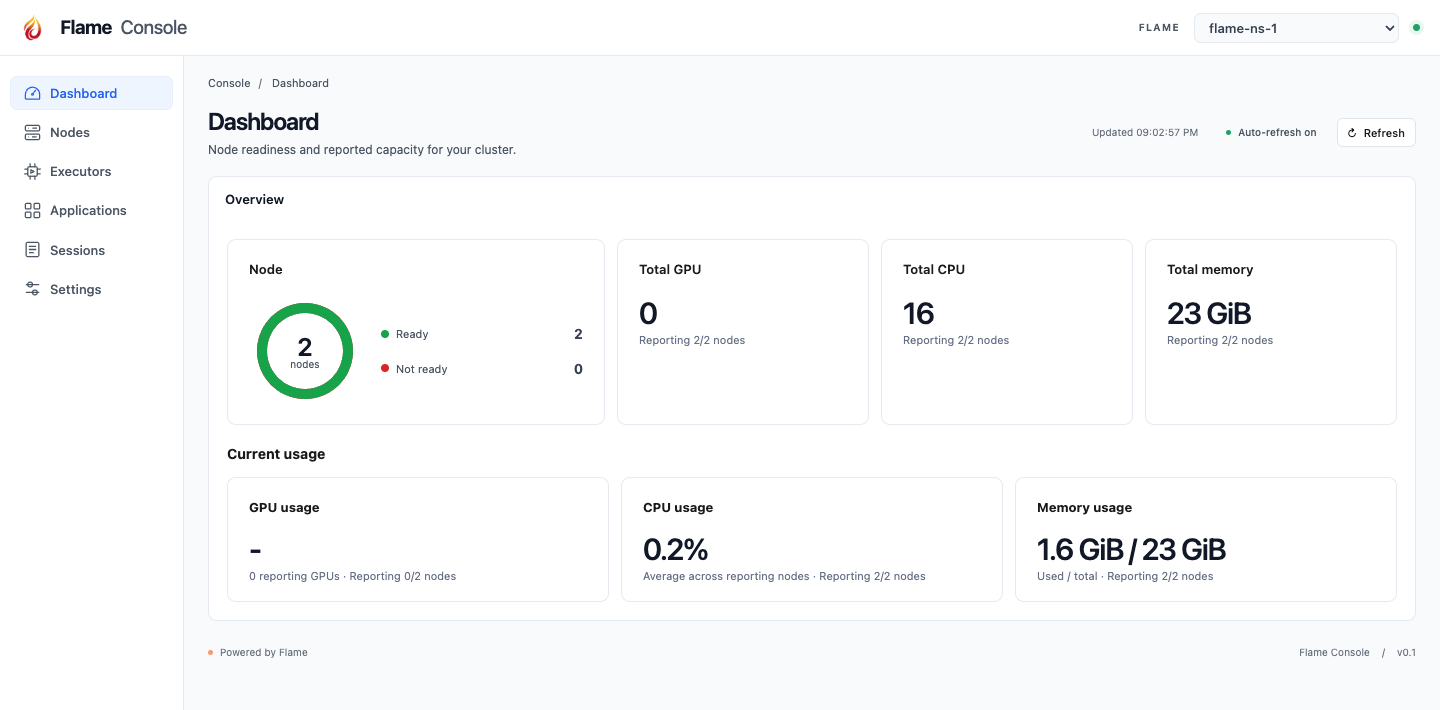
Figure 3. The Dashboard separates total reported capacity from current usage. This deployment has two ready workers, 16 CPUs, and approximately 23 GiB of memory; those values describe the captured environment.
For an agent workload, these views help connect a command waiting in Hermes with its session, assigned executor, and worker status. The namespace selector switches the resource views, join command, and client download together. The console provides administrative access to the configured Flames; protect it with the deployment’s access controls. See the console and access documentation.
hermes-flamepy: use the normal Hermes tools
The October introduction covered hermes-flamepy 0.2.0, which exposed dedicated sandbox and session tools. The new integration registers a terminal backend. Set terminal.backend: flamepy, and Hermes’s existing terminal and file operations execute in a Flame sandbox.
This lets a task use the normal sequence of reading a file, editing it, running a command, and inspecting the result. The backend handles remote execution through flamepy.agent.Sandbox; there is no additional model-facing toolset to select. The plugin README documents the backend contract.
Configure Hermes
Use Python 3.11 or newer and a recent Hermes that supports terminal environment providers and plugin state. The Hermes Python environment needs flamepy>=0.7.0 and filelock>=3.16,<4, as declared by the plugin. The Flame cluster must provide flmbox, executors with runsc on their service PATH, and the writable sandbox-root change tracked in Flame #724.
Install and select the backend:
hermes plugins install xflops/hermes-flamepy
hermes plugins enable hermes-flamepy
hermes config set terminal.backend flamepy
hermes config set terminal.cwd "$PWD"
Merge these settings into ~/.hermes/config.yaml, using your project’s absolute path for cwd:
terminal:
  backend: flamepy
  cwd: /Users/me/project
  container_persistent: true

plugins:
  isolation: in_process
  entries:
    hermes-flamepy:
      enabled: true
      settings:
        image: python:3.12-slim
The backend runs inside the Hermes process and requires in_process plugin isolation. Hermes stays on the controller machine, while shell commands and file operations run in the remote Linux environment. The configured directory is created inside the sandbox. Its matching name does not upload or mount the local project; clone or otherwise transfer the required files explicitly.
A workspace across tool calls
For example, ask Hermes:
Use the terminal to create a small CSV of regional sales in the working
directory. Write a Python script that calculates revenue and profit,
run it, and save a JSON report. Then read the report in a separate tool
call and explain the result.
This is a suggested walkthrough, rather than a recorded live run. It exercises file creation, code execution, and a later read through the standard Hermes tools.
Each command starts a fresh Bash process. Hermes preserves the working directory and exported shell variables, and files remain available while the sandbox stays open. Python interpreter variables do not persist between commands. Version 0.3.2 also uses a writable private root overlay, /root as home, and normal Python package installation paths. It removes the earlier forced /tmp home and pip-target workarounds. Custom images must include /bin/sh, Bash, Python 3, and standard shell utilities; add Git or other project tools as needed. These behaviors are described in the execution and files guide.
Understand the sandbox lifetime
The backend derives sandbox identity from Hermes’s environment identity, the profile’s plugin-data directory, and the image. With those inputs unchanged, a new environment object can reconnect to the same open sandbox, including after a Hermes restart. Different identities, profiles, or images select separate sandboxes; Hermes determines whether delegated tasks share an environment.
An open sandbox retains working state; suspension currently loses it. With the default container_persistent: true, normal cleanup suspends the Flame session and releases its executor after running work drains. A later call resumes the same session ID with fresh files and shell state, and reports environment_recreated. The session ID provides continuity of identity, not a durable filesystem snapshot.
With container_persistent: false, environment creation uses a fresh sandbox and cleanup closes it. Save important artifacts before cleanup. For the full identity and reconnect rules, see reuse and cleanup.
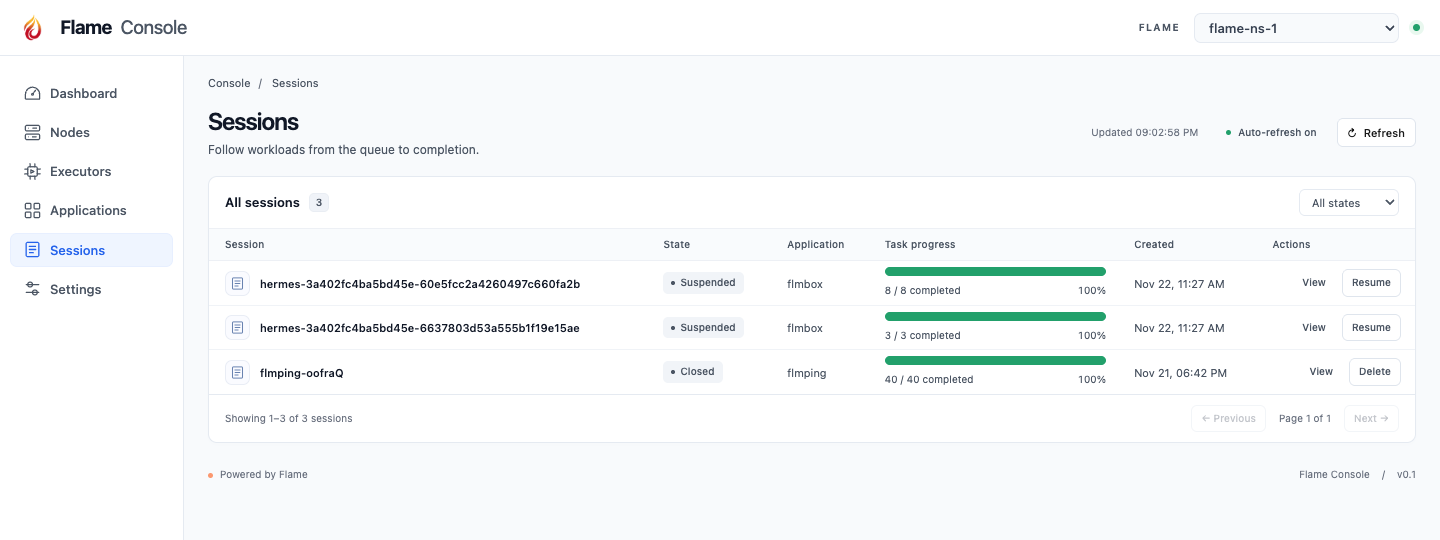
Figure 4. The live session list includes two Hermes flmbox sessions, with 8/8 and 3/3 tasks completed. Both are suspended. These are existing cluster records, separate from the suggested CSV walkthrough; completed tasks do not imply that suspended workspace files are retained.
The console screenshots were captured on November 22, 2026 through read-only navigation. Resource counts and utilization are a point-in-time snapshot, and no session actions were invoked. Capture provenance.
Commands return output and exit status when execution completes; live output streaming is not supported. Infrastructure failures are reported separately, and the backend never automatically replays a command. Cancellation of a persistent session requests suspension: running work may finish, and queued work can execute after resume. Account for that behavior when a command has side effects. See the execution limits.
Upgrading an existing Hermes setup
If you used version 0.2, remove the flamepy toolset selection and configure the terminal backend above. The old sandbox and session tools are removed. Earlier machine-wide sessions are neither reused nor deleted automatically; inspect them with flmctl list -s and close any that are no longer needed.
If you used 0.3.1, update a terminal.cwd that still points to /tmp/hermes/workspace. Existing environments retain their configuration until recreated, and files and packages in the old layout are not copied into the new one. Suspending an old sandbox and resuming on an updated executor refreshes the runtime but loses its working state. Follow the migration instructions before changing an active workspace.
Start with the cluster deployment guide, then configure the Hermes backend against the downloaded client bundle. Use the suggested CSV task to check execution and file continuity before moving a project into the remote workspace.